
Trim Text
Remove unwanted whitespace and clean your text instantly.
Related Tools













Trim Text
Trim Text online to remove unwanted spaces and clean messy text instantly. A fast, private text cleaning tool for writers, students, developers, and more.
Trim Text Online – Remove Extra Spaces and Clean Text Fast
Trim Text is a simple online text cleaning tool designed to remove unnecessary spaces from your text quickly. Whether you copied content from a website, document, PDF, spreadsheet, or another source, unwanted spaces can make your text look messy and difficult to use.
This online text trimmer helps clean text without installing software. Paste your content, process it, and get cleaner text ready to copy and use.
It is useful for writers, students, bloggers, developers, SEO professionals, and anyone who regularly works with copied or unformatted text.
What Is a Trim Text Tool?
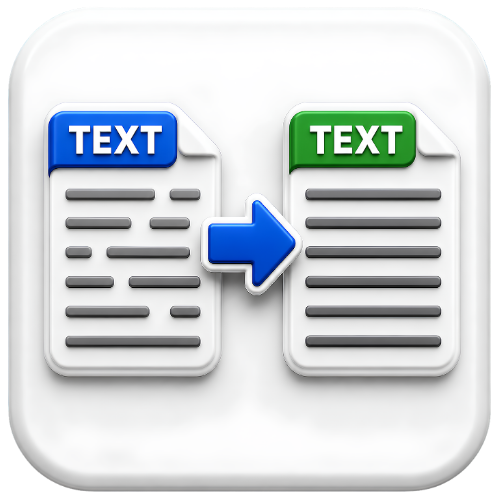
A Trim Text tool removes unwanted whitespace from text. Depending on the text-cleaning operation selected, this can help remove extra spaces at the beginning or end of lines and clean unnecessary whitespace that affects formatting.
In simple words, it helps turn messy text into cleaner and more consistent content.
For example, copied text may contain:
- Extra spaces before a sentence
- Unwanted spaces after a sentence
- Irregular whitespace between content
- Messy formatting after copying from another source
- Empty-looking spacing that makes text harder to process
Instead of manually editing every line, you can use an online whitespace remover to clean the content faster.
How Does Trim Text Work?
The tool uses a text-processing approach to identify unnecessary whitespace and apply the selected trimming operation.
The process is straightforward:
- Enter or paste your text into the input area.
- Choose the available trimming or cleaning option, if applicable.
- Run the tool.
- Review the cleaned text.
- Copy the result and use it wherever needed.
This makes text cleanup faster, especially when working with long paragraphs, lists, copied data, or multiple lines.
How to Use the Trim Text Tool
Step 1: Open the Tool
Visit the Trim Text tool on InspoTool and open the text input area.
Step 2: Paste Your Content
Copy your text from any source and paste it into the tool. You can also type directly into the input field.
Step 3: Trim the Text
Use the tool to process the content and remove unwanted whitespace according to its available trimming function.
Step 4: Check the Result
Review the cleaned output to make sure the formatting meets your needs.
Step 5: Copy Clean Text
Copy the processed text and paste it into your document, CMS, code editor, spreadsheet, or other application.
Benefits of Using an Online Text Trimmer
Using a dedicated text cleanup tool can save time and reduce repetitive editing.
Fast Text Cleanup
Cleaning extra spaces manually can be frustrating. An automated text formatting tool can process large amounts of text much faster.
Better Formatting Consistency
Clean whitespace makes content easier to read and helps maintain more consistent formatting.
Useful for Copied Content
Text copied from websites, PDFs, documents, emails, and other sources may contain irregular spaces. Trimming helps prepare that content for further editing.
No Software Installation
You can use the tool directly in a compatible web browser. There is no need to download or install a separate desktop application.
Easy for Everyday Use
The tool is designed for a simple workflow: paste, process, review, and copy.
Common Uses of Trim Text
This text cleaner can be useful in many everyday situations.
| Use Case | How It Helps |
|---|---|
| Content Writing | Cleans copied text before editing or publishing |
| SEO Content | Helps prepare text for formatting and further optimization |
| Coding | Removes unnecessary whitespace from text-based input |
| Data Cleanup | Makes copied text easier to organize and process |
| Students | Cleans notes copied from different sources |
| Bloggers | Prepares text before adding it to a website |
| Office Work | Removes messy spaces from documents and lists |
Supported File Types and Input
The Trim Text tool is primarily designed for direct text input. Simply paste plain text into the tool and process it.
If you need to clean content from a document, copy the relevant text from your source file and paste it into the input area. The tool focuses on processing text rather than requiring users to install file-conversion software.
Trim Text Online vs Installing Software
For a quick whitespace-cleaning task, installing software can be unnecessary.
Online Tool
- No installation required
- Quick access from a browser
- Simple paste-and-process workflow
- Useful for occasional and regular text cleanup
- No need to update separate software
Installed Software
- Requires downloading and setup
- May take more storage space
- Updates may be required
- Often includes many features you may not need for a simple task
If your goal is simply to remove extra spaces from text or clean whitespace, an online tool provides a faster and more convenient option.
Privacy and Text Processing
Privacy matters when using online text tools. Avoid entering passwords, financial information, private account details, or other highly sensitive content into any online service unless you understand its privacy practices.
For ordinary text-cleaning tasks, review your input before processing and use the tool responsibly. This approach helps you maintain control over the information you choose to submit.
Trim Text Online FAQs
Q : What does Trim Text do?
Ans : Trim Text helps remove unwanted whitespace and clean text formatting. It is useful when copied or manually entered content contains unnecessary spaces.
Q : Can I use this tool for long text?
Ans : Yes. It can be useful for paragraphs, multiple lines, notes, lists, and other text that needs whitespace cleanup.
Q : Does trimming change the meaning of my content?
Ans : Trimming is intended to clean unnecessary whitespace rather than rewrite your ideas. However, always review the output before using it in important documents or publishing it.
Q : Who should use a text trimming tool?
Ans : Writers, bloggers, students, developers, SEO professionals, office users, and anyone dealing with messy or irregular text can benefit from it.