
Photo Reducer in KB
Related Tools











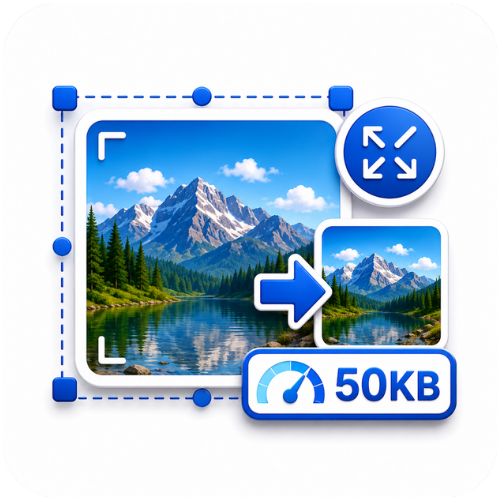




Photo Reducer in KB
Photo Reducer in KB: The Easiest Way to Compress Your Images Online
Use our free Photo Reducer in KB tool to shrink images to 20KB, 100KB, or any size online. Fast, secure, no software needed. Try it now!
Ever tried to upload a photo to a government form, job portal, or exam application, only to get hit with an error saying “file size too large”? You’re not alone. Most official websites demand images under a strict limit — often 20KB, 50KB, or 100KB — and getting there manually can be frustrating if you don’t have the right tool.
That’s exactly why a Photo Reducer in KB exists. It’s a simple, browser-based tool that shrinks your image file size down to an exact target, without asking you to install anything or understand complicated software settings. Whether you need a photo reducer in KB to 100KB for a college application or a photo reducer in KB to 20KB for a passport form, this tool handles it in seconds.
In this guide, we’ll walk through what this tool does, how it works, who needs it, and how to get the best results every time.
What Is a Photo Reducer in KB?
A Photo Reducer in KB is an online utility that compresses an image file until it reaches a specific size limit measured in kilobytes — not just a general “smaller file,” but a precise target you choose.
This matters because most compression tools only let you adjust quality percentages or dimensions, leaving you to guess and check repeatedly. A dedicated photo reducer in KB flips that around: you tell it the size you need, and it does the math for you.
You’ll find this especially useful when:
- A form specifically asks for a photo “under 50KB”
- An exam portal rejects files larger than 20KB
- A website upload field has a strict size cap
- You’re emailing multiple photos and want smaller attachments
Instead of manually adjusting sliders and re-uploading files over and over, you simply enter your target size, and the tool compresses the image accordingly.
How Does the Photo Reducer in KB Tool Work?
The process is more technical under the hood, but using it feels effortless. Here’s what actually happens:
- You upload your image (JPG, PNG, or similar format).
- You set your target file size — for example, 20KB, 50KB, or 100KB.
- The tool analyzes the image and applies smart compression algorithms that reduce file size while preserving as much visual quality as possible.
- It fine-tunes the output until the resulting file matches your requested size as closely as possible.
- You download the compressed image, ready to upload wherever it’s needed.
Unlike basic compressors that only cut quality randomly, a good photo resizer in KB online balances compression ratio, resolution, and clarity so your photo doesn’t look blurry or pixelated after reduction.
You can try this entire process yourself using the Photo Reducer in KB tool, which is built specifically to hit exact KB targets without manual guesswork.
Key Benefits of Using an Online Photo Reducer
1. Precision Sizing
Rather than “compress and hope,” you get to specify the exact output — whether that’s a photo reducer in KB to 100KB or a smaller target like 20KB.
2. No Software Installation
Everything happens in your browser. There’s nothing to download, install, or update.
3. Works on Any Device
Since it’s web-based, you can use it on a laptop, desktop, or even a smartphone browser.
4. Saves Time
Manually adjusting image quality in editing software can take several attempts. An automated tool gets it right in one pass.
5. Maintains Visual Quality
Smart compression algorithms try to preserve sharpness and color accuracy even as the file shrinks.
6. Free and Accessible
Most online reducers, including this one, don’t require payment or account creation for basic use.
Supported File Types
A reliable Photo resizer in KB and pixels tool should support the most commonly used image formats. Here’s what you can typically expect:
| File Type | Common Use Case | Supported? |
|---|---|---|
| JPG / JPEG | Photos, ID pictures, scanned documents | ✅ Yes |
| PNG | Screenshots, transparent images | ✅ Yes |
| PDF (image-based) | Scanned forms, certificates | ✅ Often supported |
| WEBP | Web images | ✅ Yes |
| BMP | Basic bitmap images | ✅ Yes (varies by tool) |
If you’re working with scanned documents saved as PDFs, a photo reducer in KB PDF feature lets you compress those files too, which is especially handy for admission forms or government submissions that request both photo and document uploads.
Common Use Cases
Government and Exam Applications
Many exam boards and government portals (passport applications, university admissions, competitive exams) require photos within tight KB limits, often between 20KB and 100KB.
Job Portals and Resumes
Recruitment websites frequently cap profile photo uploads to keep their servers fast and storage-efficient.
Website and Blog Images
Large images slow down page load speed. A photo resizer in KB jpg helps optimize images for faster websites without sacrificing too much visual quality.
Email Attachments
Sending multiple high-resolution photos through email can hit attachment limits. Compressing them first solves that instantly.
Social Media and Messaging Apps
Some platforms compress images automatically, but pre-compressing gives you more control over final quality.
Step-by-Step: How to Use the Photo Reducer in KB Tool
Here’s a simple walkthrough for compressing your first image:
- Open the tool at inspotool.com/tool/photo-reducer-in-kb.
- Upload your photo by dragging it into the upload box or selecting it from your device.
- Enter your target size in KB — for example, type “50” if you need a 50KB file.
- Click the compress/reduce button and let the tool process the image.
- Preview the result to check that quality still looks acceptable.
- Download the compressed image directly to your device.
- Upload it to whichever form, portal, or website required the smaller file size.
The entire process usually takes under a minute, even for larger original files.
Photo Resizer in KB: Height and Width Considerations
File size and image dimensions are closely related. A photo resizer in KB height and width approach adjusts both compression and pixel dimensions together, since a smaller image (in pixels) naturally results in a smaller file size.
For example:
- A 4000×3000 pixel photo will almost always be larger in KB than a 600×450 pixel version of the same image.
- If a form asks for specific dimensions (like 200×230 pixels for a passport photo) and a KB limit, you’ll need a tool that handles both simultaneously.
This is where combining resizing (pixels) with compression (KB) gives you the most accurate, form-ready result — rather than only shrinking file size while leaving the dimensions unchanged.
Tips for Best Results
- Start with a reasonably sized original. Extremely high-resolution images (10MB+) may lose more visible quality when compressed to very small targets like 20KB.
- Avoid repeated compression. Compressing an already-compressed image multiple times degrades quality faster. Always start from the original file.
- Check the required dimensions, not just the KB limit, especially for ID photos and passport applications.
- Use JPG for photographs — it generally compresses better than PNG for photographic content.
- Preview before submitting to official portals, since some forms reject even slightly-off file sizes.
Common Mistakes to Avoid
| Mistake | Why It’s a Problem | Better Approach |
|---|---|---|
| Ignoring pixel dimensions | Form may reject correct KB size but wrong dimensions | Check both requirements before uploading |
| Over-compressing repeatedly | Quality degrades with each compression pass | Always compress from the original file |
| Using screenshots instead of original photos | Screenshots often have lower base quality | Use the original camera or scanned file |
| Not previewing the output | Blurry or distorted images can get applications rejected | Always preview before final submission |
| Assuming all tools give exact sizes | Some tools only give approximate results | Use a dedicated KB-targeting tool for precision |
Online Tool vs. Desktop Software: Which Is Better?
Many people still wonder whether it’s better to download compression software or simply use an online photo reducer in KB tool. Here’s an honest comparison.
| Factor | Online Tool | Desktop Software |
|---|---|---|
| Installation | None required | Needs download and setup |
| Cost | Usually free | Often paid or has premium tiers |
| Device Compatibility | Works on any browser/device | Limited to installed OS |
| Updates | Automatic, always current | Manual updates needed |
| Storage Space | Uses no device storage | Takes up disk space |
| Learning Curve | Simple, minimal steps | May require learning software features |
| Speed for One-Off Tasks | Very fast | Slower due to setup time |
For quick, occasional compression tasks — which is what most people need — an online tool is clearly more practical. Desktop software makes more sense only if you’re doing bulk, professional-level photo editing daily.
Privacy and Security Considerations
When uploading personal photos — especially ID pictures or scanned official documents — privacy matters. A trustworthy online image compressor should:
- Process files securely over encrypted connections
- Avoid storing your images longer than necessary for processing
- Not require unnecessary account registration or personal data
- Allow you to delete or simply close the tab once done
Always be cautious with any tool that asks for excessive personal information just to compress an image. A legitimate photo resizer in KB online tool should only need the image file itself.
Photo Reducer in KB Online FAQs
Q : What is a Photo Reducer in KB used for?
Ans : It’s used to shrink an image’s file size down to a specific KB target, which is often required by government forms, job portals, and exam applications with strict upload limits.
Q : How do I reduce a photo to exactly 20KB?
Ans : Upload your image to the tool, set your target size to 20KB, and let the compressor process it. Most tools get very close to the exact target automatically.
Q : Can I use a photo reducer in KB for PDF files?
Ans : Yes, many tools that support photo reducer in KB PDF functionality allow you to compress image-based PDFs, which is useful for scanned certificates or documents.
Q : Will reducing file size ruin image quality?
Ans : Some quality loss is expected with any compression, but a good tool balances size reduction with visual clarity so the image still looks clear for its intended purpose.
Q : Is it possible to resize both pixels and KB size at once?
Ans : Yes. A photo resizer in KB and pixels tool can adjust dimensions and file size together, which is especially useful for passport or ID photo requirements.
Q : Do I need to install any software?
Ans : No. Since it’s a browser-based tool, there’s nothing to download or install. It works directly through your web browser.
Q : What image formats are supported?
Ans : Most tools support JPG, JPEG, PNG, and WEBP, with some also offering PDF compression support.
Q : Can I reduce multiple photos at once?
Ans : Yes You Can Reduce multiple photos on inspotool.com
Q : What’s the difference between a photo reducer and a photo resizer?
Ans : A reducer typically focuses on shrinking file size (KB), while a resizer often refers to changing pixel dimensions — though many tools, including combined photo resizer in KB and pixels options, handle both together.
Photo Reducer in KB Online Final Thoughts
Uploading photos to online forms shouldn’t feel like solving a puzzle. Whether you’re trying to hit an exact photo reducer in KB to 100KB requirement for a college application or need a photo reducer in KB to 20KB for a government portal, having a reliable, precise tool makes the whole process painless.
Instead of installing bulky software or guessing your way through quality sliders, you can compress your image in seconds using the Photo Reducer in KB tool — free, browser-based, and built for exact size targeting.
Give it a try the next time a form rejects your photo for being “too large.” Upload, set your target size, download, and get on with your application — no stress, no software, no guesswork.